Latest Version
Update
October 26, 2026
October 26, 2026
Developer
Nasr for graphic
Nasr for graphic
Categories
Tools
Tools
Platforms
Android
Android
Downloads
0
0
License
Free
Free
Package Name
com.nasr.ScreenCastTV
com.nasr.ScreenCastTV
Report
Report a Problem
Report a Problem
More About Roku Remote Control Roku TV
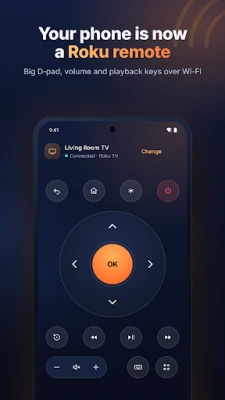
Turn your phone into a remote control for your Roku TV or Roku streaming player. ScreenCast TV works over your home Wi‑Fi: a big D‑pad, OK, Back and Home, play and pause, volume, a phone keyboard for searches and a one‑tap channel launcher. Screen mirroring to any TV browser is still here, in the Cast tab.
WHY PEOPLE USE IT
• Lost or broken Roku remote? Keep controlling your TV from your phone.
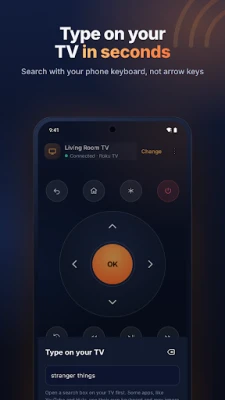
• Typing a search with arrows takes forever. Type it on your phone instead.
• It reconnects on its own when you come back to the app, no restart needed.
• The D‑pad lights up green when your Roku gets the press, so you know it worked.
REMOTE FEATURES
• Big D‑pad with OK, hold to scroll fast
• Back, Home, Options, Instant replay, Rewind, Play/Pause, Fast forward
• Volume up, down and mute on Roku TVs
• Power on and off on Roku TVs
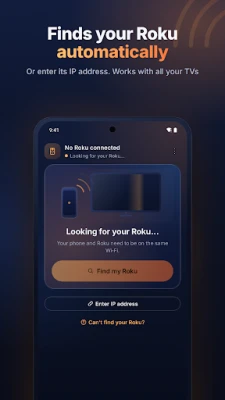
• Finds your Roku automatically, or enter its IP address
• Remembers your TVs and works with as many as you have
• Haptic feedback on every key
• English and Arabic
REMOTE PRO (one payment or monthly)
• Keyboard: type searches and passwords straight onto your TV
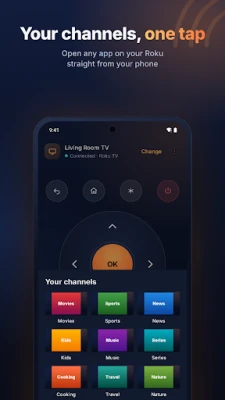
• Channel launcher: open Netflix, YouTube, Hulu and your other channels in one tap
• No ads anywhere in the app
The D‑pad, volume and playback keys are free, with ads.
SCREEN MIRRORING (CAST TAB)
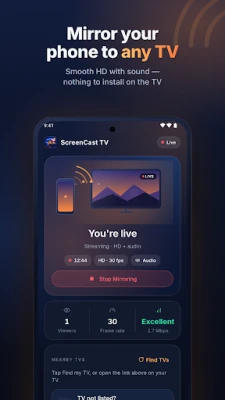
Mirror your phone to any smart TV, PC or tablet through its web browser. Nothing to install on the TV. Many TVs can also play the stream directly.
BEFORE YOU START
• Your phone and Roku must be on the same Wi‑Fi (not a guest network, no VPN).
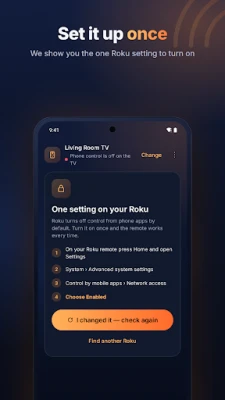
• Roku turns off control from phone apps by default. On your Roku open Settings › System › Advanced system settings › Control by mobile apps, and choose Enabled. The app shows you how.
• Volume and power keys work on Roku TVs. On a Roku streaming player they work only when your TV supports HDMI‑CEC.
• Some apps, such as YouTube and Hulu, use their own on‑screen keyboard and may ignore phone typing.
ScreenCast TV is an independent app and is not affiliated with, endorsed by, or sponsored by Roku, Inc. Roku, Roku TV and Streaming Stick are trademarks of Roku, Inc.
• Lost or broken Roku remote? Keep controlling your TV from your phone.
• Typing a search with arrows takes forever. Type it on your phone instead.
• It reconnects on its own when you come back to the app, no restart needed.
• The D‑pad lights up green when your Roku gets the press, so you know it worked.
REMOTE FEATURES
• Big D‑pad with OK, hold to scroll fast
• Back, Home, Options, Instant replay, Rewind, Play/Pause, Fast forward
• Volume up, down and mute on Roku TVs
• Power on and off on Roku TVs
• Finds your Roku automatically, or enter its IP address
• Remembers your TVs and works with as many as you have
• Haptic feedback on every key
• English and Arabic
REMOTE PRO (one payment or monthly)
• Keyboard: type searches and passwords straight onto your TV
• Channel launcher: open Netflix, YouTube, Hulu and your other channels in one tap
• No ads anywhere in the app
The D‑pad, volume and playback keys are free, with ads.
SCREEN MIRRORING (CAST TAB)
Mirror your phone to any smart TV, PC or tablet through its web browser. Nothing to install on the TV. Many TVs can also play the stream directly.
BEFORE YOU START
• Your phone and Roku must be on the same Wi‑Fi (not a guest network, no VPN).
• Roku turns off control from phone apps by default. On your Roku open Settings › System › Advanced system settings › Control by mobile apps, and choose Enabled. The app shows you how.
• Volume and power keys work on Roku TVs. On a Roku streaming player they work only when your TV supports HDMI‑CEC.
• Some apps, such as YouTube and Hulu, use their own on‑screen keyboard and may ignore phone typing.
ScreenCast TV is an independent app and is not affiliated with, endorsed by, or sponsored by Roku, Inc. Roku, Roku TV and Streaming Stick are trademarks of Roku, Inc.
Rate the App
Add Comment & Review
User Reviews
Based on 0 reviews
No reviews added yet.
Comments will not be approved to be posted if they are SPAM, abusive, off-topic, use profanity, contain a personal attack, or promote hate of any kind.



More »

Popular Apps
phpFoxPHPFOX LLC

Moon Chai StoryOlha Dobel

World War Heroes — WW2 PvP FPSAzur Interactive Games Limited
Govee LiteGovee

AvSeaAvionics Electronics Geeks!

Viking Clan: RagnarokKano Games

Build World AdventureExplore city in cube world

Vikings: War of ClansPlarium LLC

Asphalt 9: LegendsGameloft SE

Dawn of Zombies: Survival GameRoyal Ark
More »
Editor's Choice

Grim Soul: Dark Survival RPGBrickworks Games Ltd

Craft of Survival - Gladiators101XP LIMITED

Last Shelter: SurvivalLong Tech Network Limited
Dawn of Zombies: Survival GameRoyal Ark

Merge Survival : WastelandStickyHands Inc.

AoD Vikings: Valhalla GameRoboBot Studio
Viking Clan: RagnarokKano Games
Vikings: War of ClansPlarium LLC
Asphalt 9: LegendsGameloft SE

Modern Tanks: War Tank GamesXDEVS LTD