

Latest Version
Update
October 12, 2026
October 12, 2026
Developer
My Vehicle Info
My Vehicle Info
Categories
Maps & Navigation
Maps & Navigation
Platforms
Android
Android
Downloads
0
0
License
Free
Free
Package Name
com.myvehicleinfo.fakegps
com.myvehicleinfo.fakegps
Report
Report a Problem
Report a Problem
More About Fake GPS - Mock Location
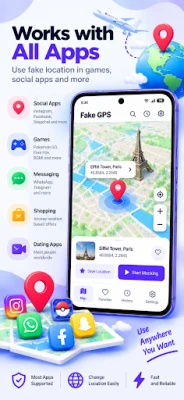
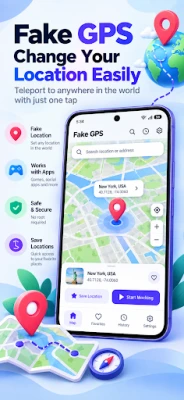
Fake GPS - Mock Location makes it easy to simulate your device's GPS location anywhere in the world. Choose a place on the map, search for a destination, enter coordinates, or use the GPS joystick to simulate movement.
Designed for developers, QA testers and users who need location simulation, Fake GPS provides an easy-to-use map interface with fixed mock locations, joystick movement, route simulation, favorites and location history.
📍 SET A MOCK GPS LOCATION
Search for a city, address or place, or simply select a point directly on the map. Start the simulation and your device will use the selected mock location through Android's Developer Options.
🕹️ GPS JOYSTICK
Move your simulated location in any direction using the built-in joystick.
• Smooth 360° movement
• Walking, running and driving speeds
• Adjustable movement speed
• Live position updates
• Location trail support
• Easy start and stop controls
🛣️ ROUTE SIMULATION
Create routes with multiple locations and simulate movement between them.
• Add multiple route points
• Reorder waypoints
• Adjust simulation speed
• Pause and resume movement
• Repeat routes
• Follow route progress on the map
• Save routes for later use
🔎 SEARCH LOCATIONS
Quickly find the location you need using place search. You can also select locations directly from the map and work with precise latitude and longitude coordinates.
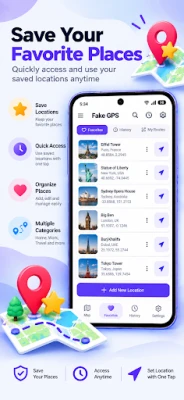
⭐ FAVORITE LOCATIONS
Save frequently used locations so you can quickly return to them without searching again.
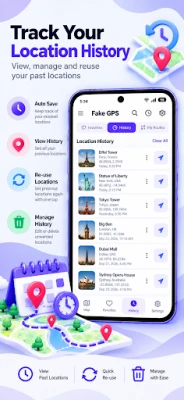
🕘 LOCATION HISTORY
Access recently used mock locations and simulation sessions, making it easy to reuse locations you've tested before.
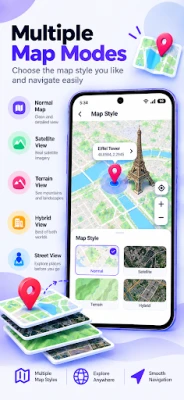
🗺️ INTERACTIVE MAP
Explore locations using an easy-to-use map with markers, route visualization and convenient map controls.
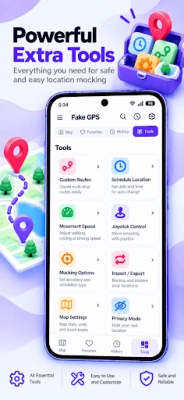
⚙️ CUSTOMIZABLE GPS SIMULATION
Adjust simulation options such as:
• Location update interval
• GPS accuracy
• Movement speed
• Movement mode
• Route looping
• Location trail
• Map type
• Distance units
🚀 QUICK SETUP
Fake GPS includes a guided setup that helps you configure Android's mock-location feature.
To use mock locations:
1. Enable Developer Options on your Android device.
2. Open Developer Options.
3. Choose "Select mock location app."
4. Select Fake GPS.
5. Return to Fake GPS and choose the location you want to simulate.
No root access is required for Android's standard mock-location functionality.
🧪 USEFUL FOR DEVELOPMENT & TESTING
Fake GPS can help developers and QA testers test location-aware applications and scenarios, including:
• Location-based application testing
• Geofencing tests
• Map and navigation UI testing
• Different geographic test locations
• Route and movement simulation
• GPS-related development and debugging
🔒 PRIVACY & CONTROL
You remain in control of when GPS simulation starts and stops. Stop the active mock-location session at any time from the app.
⚠️ IMPORTANT
Fake GPS uses Android's mock-location functionality available through Developer Options. Some applications and services can detect or reject mock locations, so compatibility with every third-party application cannot be guaranteed.
📋 DISCLAIMER
Fake GPS is intended for legitimate location simulation, software development, testing, debugging, privacy and educational purposes. Users are responsible for complying with applicable laws and the terms and policies of any third-party apps or services they use with Fake GPS.
Fake GPS is not affiliated with, endorsed by, or sponsored by Google or any third-party application or service. Features that depend on third-party services may be subject to their availability and policies.
📍 SET A MOCK GPS LOCATION
Search for a city, address or place, or simply select a point directly on the map. Start the simulation and your device will use the selected mock location through Android's Developer Options.
🕹️ GPS JOYSTICK
Move your simulated location in any direction using the built-in joystick.
• Smooth 360° movement
• Walking, running and driving speeds
• Adjustable movement speed
• Live position updates
• Location trail support
• Easy start and stop controls
🛣️ ROUTE SIMULATION
Create routes with multiple locations and simulate movement between them.
• Add multiple route points
• Reorder waypoints
• Adjust simulation speed
• Pause and resume movement
• Repeat routes
• Follow route progress on the map
• Save routes for later use
🔎 SEARCH LOCATIONS
Quickly find the location you need using place search. You can also select locations directly from the map and work with precise latitude and longitude coordinates.
⭐ FAVORITE LOCATIONS
Save frequently used locations so you can quickly return to them without searching again.
🕘 LOCATION HISTORY
Access recently used mock locations and simulation sessions, making it easy to reuse locations you've tested before.
🗺️ INTERACTIVE MAP
Explore locations using an easy-to-use map with markers, route visualization and convenient map controls.
⚙️ CUSTOMIZABLE GPS SIMULATION
Adjust simulation options such as:
• Location update interval
• GPS accuracy
• Movement speed
• Movement mode
• Route looping
• Location trail
• Map type
• Distance units
🚀 QUICK SETUP
Fake GPS includes a guided setup that helps you configure Android's mock-location feature.
To use mock locations:
1. Enable Developer Options on your Android device.
2. Open Developer Options.
3. Choose "Select mock location app."
4. Select Fake GPS.
5. Return to Fake GPS and choose the location you want to simulate.
No root access is required for Android's standard mock-location functionality.
🧪 USEFUL FOR DEVELOPMENT & TESTING
Fake GPS can help developers and QA testers test location-aware applications and scenarios, including:
• Location-based application testing
• Geofencing tests
• Map and navigation UI testing
• Different geographic test locations
• Route and movement simulation
• GPS-related development and debugging
🔒 PRIVACY & CONTROL
You remain in control of when GPS simulation starts and stops. Stop the active mock-location session at any time from the app.
⚠️ IMPORTANT
Fake GPS uses Android's mock-location functionality available through Developer Options. Some applications and services can detect or reject mock locations, so compatibility with every third-party application cannot be guaranteed.
📋 DISCLAIMER
Fake GPS is intended for legitimate location simulation, software development, testing, debugging, privacy and educational purposes. Users are responsible for complying with applicable laws and the terms and policies of any third-party apps or services they use with Fake GPS.
Fake GPS is not affiliated with, endorsed by, or sponsored by Google or any third-party application or service. Features that depend on third-party services may be subject to their availability and policies.
Rate the App
Add Comment & Review
User Reviews
Based on 0 reviews
No reviews added yet.
Comments will not be approved to be posted if they are SPAM, abusive, off-topic, use profanity, contain a personal attack, or promote hate of any kind.














More »

Popular Apps

phpFoxPHPFOX LLC

Moon Chai StoryOlha Dobel

World War Heroes — WW2 PvP FPSAzur Interactive Games Limited

Govee LiteGovee

Viking Clan: RagnarokKano Games

Build World AdventureExplore city in cube world

AvSeaAvionics Electronics Geeks!

Vikings: War of ClansPlarium LLC

Asphalt 9: LegendsGameloft SE

Dawn of Zombies: Survival GameRoyal Ark
More »
Editor's Choice

Grim Soul: Dark Survival RPGBrickworks Games Ltd

Craft of Survival - Gladiators101XP LIMITED

Last Shelter: SurvivalLong Tech Network Limited
Dawn of Zombies: Survival GameRoyal Ark

Merge Survival : WastelandStickyHands Inc.

AoD Vikings: Valhalla GameRoboBot Studio
Viking Clan: RagnarokKano Games
Vikings: War of ClansPlarium LLC
Asphalt 9: LegendsGameloft SE

Modern Tanks: War Tank GamesXDEVS LTD